

T-Port Operating Instructions for Partners
This section contains detailed operating instructions, video tutorials and technical information for your use as a T-Port partner, as well
different scenarios you and your affiliated students/filmmakers may encounter your work with the platform.
Please follow the steps below and don’t hesitate to contact us with any problem at info@tportmarket.com
1. Enter https://tportmarket.com/ and click on ‘Login’ (top-right side of the screen)

2. Type in the username and password you’ve received from us via e-mail and click on ‘Login’.
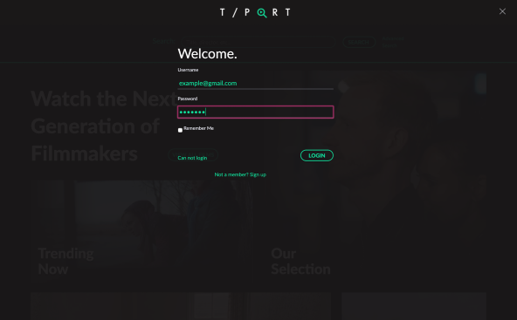
To set up your catalogue page on T-Port, go to ‘Manage my catalogue’:

To complete the settings, please upload the four following files and text:
(1) White transparent logo:

(2) Coloured Logo:

(3) Background Image:

(4) Institution profile:

IMPORTANT: Please note the restrictions on file size/ratio and recommended length of text.
‘Manage My Catalogue’ is the interface that lets you upload, edit and delete the films that will be shown on your partner page. You are the admin of the partner page, which means that you are responsible for managing and updating its content. You also decide which films are uploaded to T-Port. You can also choose to provide your students/filmmakers with the option to upload their films independently (see more in “Part 2 – Students/Filmmakers Using T-Port”).
A. Upload your films
Please follow the steps below:
1. Log in to T-Port with the details you’ve received.
2. Click on you user name on the top-right side of the screen.
3. A menu will open – click on ‘Manage my Catalogue‘.
4. To upload a new film – click on the green square – Go to ‘Manage my films’ at the bottom of the page and click on ‘Add new film’

5. You will now be forwarded to edit the film details.
Please fill in credits, synopsis, festivals, etc. Make sure to fill in is as many details as possible including the festivals the film has been screened at – the more info you have, the easier it will be for professionals to filter the information and find your film.
6. Once you complete the form, click on ‘Save and Continue to Film Upload’
7. You will now be forwarded to upload your film. This is the last step in the
process before the film page is published on T-Port.
8. To upload you film, please choose ‘Upload a file’ (and select your film file to upload)
Technical information:
- The file must be 1GB max and preferably not bigger than 1 GB.
- Important: Please name the file with the film’s title, the director’s name. For example: Parasite_Bong_Joon_Ho
- File formats – H.264 or mp4. Resolution: 1080p.
- The upload might take a moment, depending on your connection. It is recommended to upload the film from a computer connected to a high-bandwidth Internet connection.
- When the upload is complete, you will see a confirmation notice (see screenshot below).
- The film will not appear on T-Port before the upload has been completed.
- After the upload has been completed, it will take a few minutes until you can view the film on the platform
9. After receiving the confirmation on the film upload, click on ‘Back to Manage My Catalogue’ and repeat the above steps to upload more films.

B. Edit / Delete films
After uploading your films, you may want to edit some of the details or delete them. To do so, place the mouse cursor on the picture of the film you would like to edit. Editing a film page is a similar process to uploading the film.

*Please note: the ‘festival section’ of the films needs to be updated regularly, by you or the student/filmmaker, to maintain accurate information.
After you have uploaded a film, you can edit the filmmaker’s profile, which will appear on the film page:
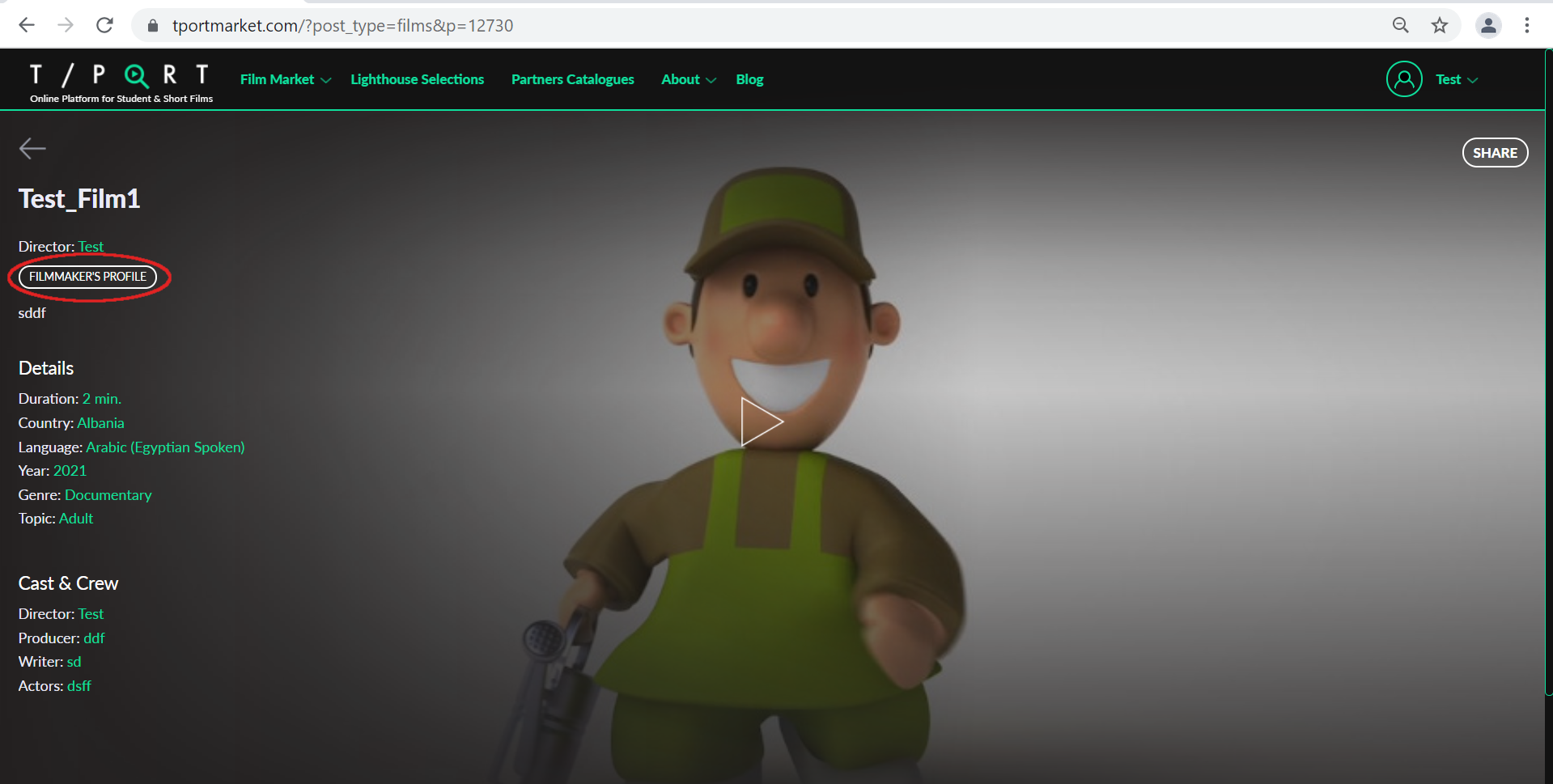
To do so, please go to ‘Manage my Catalogue’ and click on ‘Edit/Create Profile’ in the grid, next to the respective film.

One effective way to use T-Port is by sharing your partner catalogue with colleagues and professionals so they can view your films. We are glad to provide you with up to 20 complimentary codes to share your catalogue.
You are welcome to ‘copy-paste’ the following instructions to colleagues or professionals. Once they sign up they will receive one year access to T-Port with no charge.
- Go to: https://tportmarket.com/professional-registration/
- Fill in the form and in the field ‘registration code’, enter the free code:-fill in the free code provided by us here-
- You will receive an email confirmation and your account will be verified within a few hours.
- Then you will be able to access our catalogue at: -fill in the link to your catalogue here-
As mentioned, the recommended way of sharing your films with industry professionals is by inviting them to sign up to T-Port to gain access to all of your company’s films for a year. In the instance that you would like to send specific links of films to professionals who are not members of T-Port:
1. Go to “Manage my Catalogue” and find “Advanced Settings”. Click on the + symbol on the right side.

2. Go to “Password for sharing films” and set up a password.

3. Go to the film page that you’d like to share
4. Click ‘Share’ on the top-right side of the screen

5. Copy the link that appears in the pop-up window

6. Send the link + password to colleagues or professionals!
When an industry professional is interested in one of your films, they will send you an inquiry via T-Port that will be sent directly both to the partner representative’s e-mail and to the filmmaker (if the filmmaker has signed up T-Port).
Please note that inquiries are sent from a T-Port email account, but you will need to send your reply to the email address quoted in the message.
It is up to you to decide how to respond to the inquirer and whether or not to accept their proposal. However, we do still encourage you to respond in order to maintain contact for any potential future propositions. Needless to say, we are always happy to hear about any contact made and resulting achievements – after all, that’s what we’re here for!
See below for an example of a film inquiry you might receive.

1. Open the menu in the homepage by clicking on your profile name on the top-right side of the screen.
2.Click on ‘Account Settings’ – on this page you’ll be able to see your general information and be able to edit it.

3. Under ‘Account Settings’ you will find the field dedicated to changing your password. After typing in a new password, confirm in the field below and click ‘Update’. Now your password is updated.


